How to use Inpainting — editing specific areas of your generated images
Inpainting lets you select any region of a generated image and regenerate it with a new prompt — while keeping the rest of the image, your composition, and your brand style completely intact. This guide explains how to use it effectively.
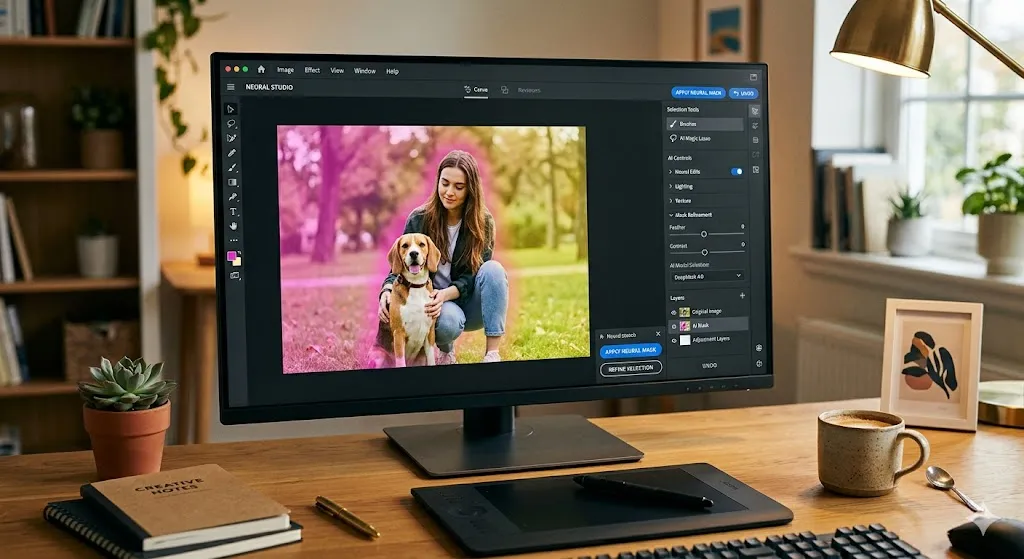
What Inpainting is for
Inpainting solves one of the most common frustrations in AI image generation: you generate an image that is 90% right, but one element is wrong. Without inpainting, the only option is to regenerate the entire image and hope the next version fixes the problem while keeping everything else the same. With inpainting, you fix only the part that is wrong.
Common inpainting use cases: — Changing the background while keeping the subject — Replacing a specific prop or object in a scene — Adjusting the lighting in one area of the image — Adding or removing a detail from a specific region — Changing the colour or texture of a specific element — Adapting one image for multiple markets by changing environmental details
How to access Inpainting
Open any generated image in your Workspace
Click the Edit button below the image
Select Inpaint from the editing toolbar
The inpainting canvas will open with your image displayed full size
How to use the Inpainting tool
Step 1 — Select the area to regenerate Use the brush tool to paint over the region you want to change. Paint over the entire area you want to affect — the model will regenerate everything within your selection. You can adjust brush size using the slider in the toolbar.
Step 2 — Write a prompt for the new area In the prompt field below the canvas, describe what you want the selected area to become. Be specific. If you are replacing a background, describe the new background in detail. If you are changing a prop, describe the new prop precisely.
Step 3 — Generate Click Generate. Mianki AI will regenerate the selected area using your prompt while preserving everything outside the selection. Four variations will be generated — each exploring a slightly different interpretation of your prompt within the selected region.
Step 4 — Select and apply Review the four variations. Click the one you want to apply. The selected variation will be merged into the original image. You can continue to inpaint additional areas of the same image if needed.
Tips for better inpainting results
Paint generously, not precisely Paint slightly beyond the edges of the area you want to change. If your selection is too tight, the model may produce visible seams at the boundary between the original and regenerated areas.
Describe the surrounding context in your prompt Include references to elements just outside your selection to help the model understand what the regenerated area needs to blend with. For example: "warm oak floor, soft ambient light from the left, consistent with the rest of the scene."
Match the lighting in your prompt The most common reason inpainting looks wrong is a lighting mismatch. Explicitly describe the light quality in your inpainting prompt to match the rest of the image.
Use inpainting iteratively You do not have to fix everything in one inpaint session. Fix one area, review the result, then inpaint the next area. Iterative inpainting produces better results than trying to fix multiple areas simultaneously.

